Free implementation guide / 01
Set Up Conversion Tracking You Can Trust
Define events, wire confirmed-success triggers, test failures and reconcile analytics with real leads.
One verified business-conversion event.
Site/backend access, a test submission flow and authorized analytics/tag-manager access.
Jump to the working checklist ↓Watch the acceptance and failure tests.
Silent, captioned walkthrough of the practice lab. These are real screen recordings of an illustrative exercise.
Read the walkthrough
The demo accepts one enquiry and records one lead_accepted event. After reset, a rejected submission records none. After another reset, a double-click still records one. This is a browser simulation, not a server integration or analytics account.
Build this: a measurement specification you can test before buying traffic. You need access to your site, analytics property and form or checkout test environment. Start with one real business conversion—not every click.
01Define the event before touching a tag manager
A lead submission is not a qualified lead. A checkout start is not a purchase. Choose your primary site event, then document how it connects to the later business outcome. For a lead site: accepted form submission → qualified lead → customer. For ecommerce: confirmed paid order → refunds → net revenue.
Write an event specification with the event name, trigger, required fields, owner and test. Use a name such as generate_lead only when the server accepts the submission. Fire purchase after payment confirmation, not on a button click. A success message shown before a failed request is not proof of a lead.
Do not send names, email addresses, phone numbers, free-text messages or health information to analytics or ad platforms. Check URLs too: query strings and page titles can leak personal data. Only load and transmit marketing tracking when your consent setup permits it.
02Give the implementation a stable interface
This dataLayer example belongs in the confirmed-success callback of your form integration. It queues an event; it does not configure a tag, implement consent, or send anything by itself. Configure the tag manager separately to listen for this exact event. Use a real request identifier from your backend to prevent duplicate handling.
// Run once after the backend accepts a valid lead.
// The example deliberately contains no customer identifiers.
window.dataLayer = window.dataLayer || [];
window.dataLayer.push({
  event: 'lead_accepted',
  form_id: 'quote_request',
  service_category: 'website_audit'
});
SEE THE ACTUAL EXAMPLE
Verify success and failure—not just the click
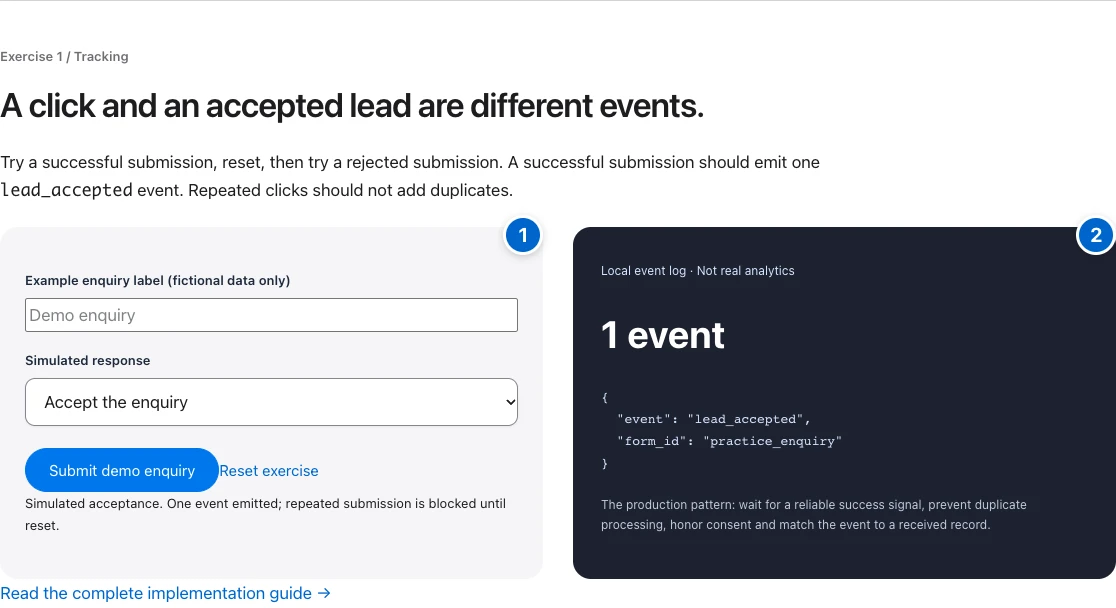
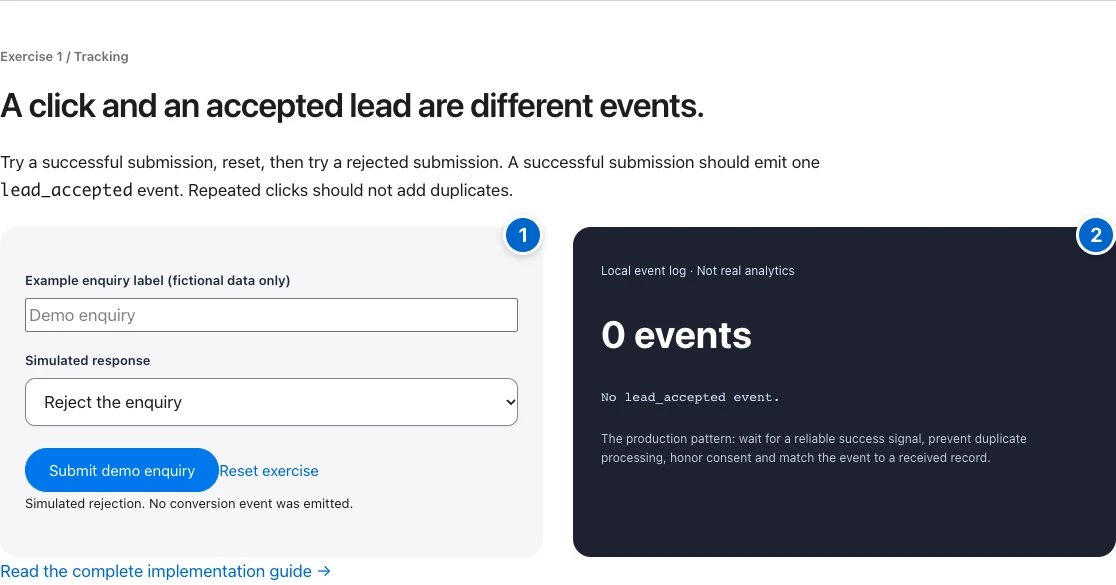
Your action: Repeat the exercise with rejection and repeated clicks; then verify your production system against received records.
03Keep the trigger and conversion definition aligned
In your tag manager, create a custom-event trigger for lead_accepted. Map it to the analytics event generate_lead, with the non-personal fields you actually need. If another plugin already sends that event, pick one owner and remove the duplicate path. Preview the container before publishing.
For purchases, use the platform’s confirmed order integration. Pass a stable transaction_id, the actual currency and the documented order value. Do not invent an order ID on every page load. Reconcile client and server events using the destination’s supported deduplication mechanism before enabling both.
04Run the failure cases, not just the happy path
Test: empty required fields, invalid input, a backend error, a valid submission, a double click, and reloading the confirmation page. Your expected accepted-lead count is zero for failures and one for the valid submission. A second genuinely new request is a separate lead; a retry of the same request is not.
Use the browser Network panel and your tag manager preview to inspect requests. Confirm the event name, destination and parameters; check that the consent state is respected. Then confirm receipt in the destination’s debug or realtime view. An event in dataLayer alone does not prove delivery.
Repeat on mobile and with consent declined. Ad blockers and browser restrictions can reduce observed analytics counts. Do not defeat a visitor’s preferences to force attribution.
05Reconcile against the source of truth
Compare accepted leads in your backend with analytics events for the same time zone and period. Investigate large gaps before changing campaign budgets. Exact equality is not always possible because of consent, blockers and attribution windows.
Track qualified leads and customers in your CRM separately. Calculate cost per qualified lead and CAC from a consistent campaign cohort. If sales take weeks, today’s spend divided by today’s sales mixes different cohorts and can mislead you.
Done when: your event spec is written, failure cases produce no conversion, one valid action produces one intended event, personal data is absent, and receipt is verified. Download the measurement-spec template ↓
Implementation artifact
Keep a conversion test log.
Use one row per test and record the actual outcome. This example is a test plan, not a report from my companies.
| Test | Expected event | Check the source record |
|---|---|---|
| Successful submission | One lead_accepted | One accepted lead |
| Missing required field | None | No lead |
| Server rejects request | None | No accepted lead |
| Double-click / retry | No duplicate | One accepted lead, using your deduplication rule |
Record timestamp, environment, consent state, event count, lead record reference and pass/fail. Keep personal information out of the analytics payload and shared test evidence.
- 01Visitor submits
A button click is not an accepted lead.
- 02Server accepts
Confirm the enquiry was actually received.
- 03Emit one event
Prevent repeated submissions from duplicating it.
- 04Reconcile records
Compare analytics against accepted enquiries.
Make the idea concrete.
Invalid form: zero events. Backend rejection: zero events. One accepted lead: one intended event. Double-click or confirmation reload: no duplicate for that same accepted request. Verify both the backend record and analytics receipt.
Done means verified.
Check each item as you verify it. Progress stays in this page; download your checklist before leaving.