Technical tutorial / Social Media & Video
Turn One Customer Question into a Useful Tutorial Video
Plan, record and publish a task-focused video with a visible result, captions and a measurable next step.
By Aaron Peden · Published · Updated October 27, 2026
Build this: A shot list and publishing checklist for a short, reproducible how-to video.
Before you start: One task you can demonstrate, permission to show the interface and a screen recorder or camera.
A useful tutorial video proves that a task can be completed. It shows the starting state, the action and the result, including what failure looks like when that matters. That is different from a motivational clip about why the task is important.
Choose a narrow question and record the actual work. You do not need cinematic production to explain a form test, but you do need readable text, a coherent sequence and careful handling of private information. This guide does not promise reach or an algorithmic advantage from a particular duration, tag list or posting schedule.
1. Choose one viewer and one task
Write the question as the viewer would ask it: “How do I know a failed form submission is not counted as a lead?” Define the finished state and the prerequisites. If the viewer needs an account, permission or a configured product before following along, say that before the demonstration starts.
Keep the scope small enough to show the full path. A video called “Learn all analytics” cannot establish the same clear expectation as a test of one event. Link related lessons rather than rushing several unrelated workflows into a short clip.
2. Write a shot list around evidence
Plan the opening result, starting screen, each action, the successful output and one relevant failure case. Add a note for what should be visible in each shot. Use the worksheet below to separate narration from on-screen actions, so the recording does not become a cursor wandering while you decide what to explain.
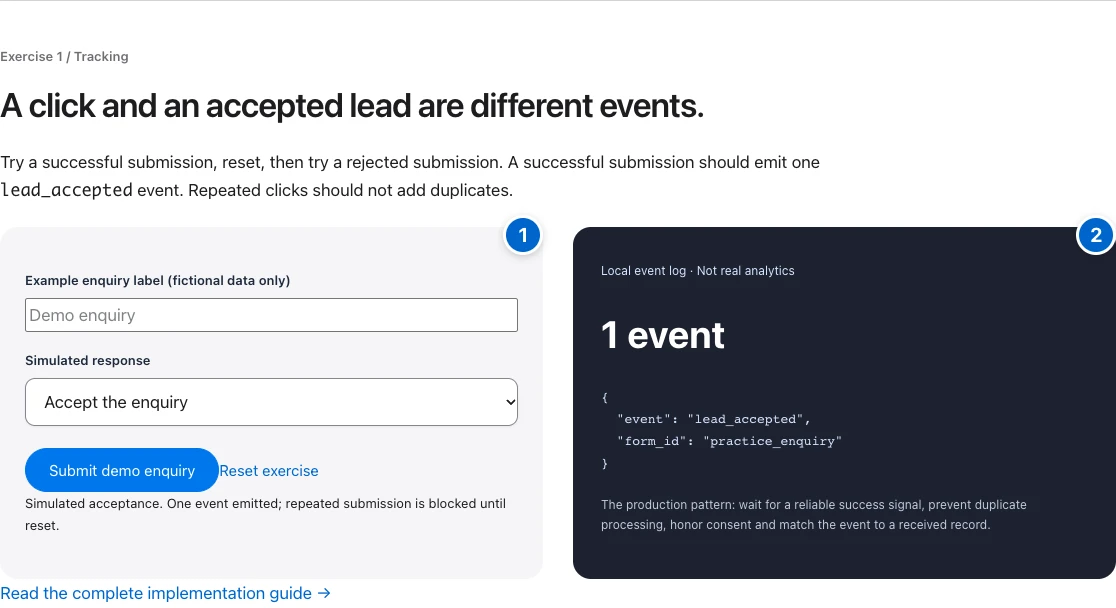
For the tracking example, record zero events, accepted submission, one event, reset, rejected submission and zero events. The screenshots in this tutorial come from that actual local exercise. They demonstrate a simulated workflow and are not evidence of a live analytics property receiving real customer data.
See the actual example
3. Prepare a clean recording environment
Use a dedicated browser session with fictional data and no private tabs, notifications, customer names or credentials. Set a viewport that keeps controls readable in the final video. Increase interface text size when needed, but do not crop away the status that proves the result.
Check permission to show third-party interfaces and customer material. If a workflow requires a private account, capture it only through an authorized account and redact sensitive material before publication. Never replace a missing result with a fabricated dashboard or AI-generated interface.
4. Record the action and explain the decision
Show the exact control before activating it, then pause long enough for the result to be read. Explain why the action matters and what the viewer should expect. Remove dead time without removing the causal sequence. If the real task includes a delay, state that rather than presenting an edit as instantaneous processing.
Record a failure state when it changes implementation: rejection, validation error, duplicate click or unavailable permission. Give a recovery action. A demonstration that only shows the happy path may leave the viewer unable to tell a working setup from a misleading success message.
Worked example — illustrative or dated as stated
Illustrative shot list: show the local log at zero; submit an accepted enquiry; point to one event; reset; choose rejection; submit; point to zero events. The lesson is the acceptance boundary. The next action is to run the same test matrix against the viewer’s authorized production form.
5. Publish with accurate packaging
Choose a title that names the task and a thumbnail that reflects the actual lesson. Add a clear description, prerequisite links and the next step. Provide captions and review them for product names, commands and numbers. Do not rely on automatic transcription without checking the technical parts.
YouTube’s own guidance says title, thumbnail and description are more important discovery metadata than tags, which play a minimal role except in cases such as common misspellings. Do not stuff a description with tags or promise that a tag strategy will create demand. Use the current platform instructions for your account.
6. Check comprehension and the next action
Watch the published version on a phone-sized screen with sound off and then with captions. Can the viewer identify the task and see the result? Ask someone to follow the steps without your help. Record where they pause or misunderstand, then improve the lesson rather than merely shortening it.
Measure the outcome appropriate to the video: successful exercise completion, movement to the full guide or a qualified enquiry. Views and retention help diagnose presentation but do not prove skill acquisition or sales. Keep the recording date visible when interface changes may make the instructions stale.
YOUR IMPLEMENTATION WORKSHEET
Build your working document.
Enter planning notes without customer identities or secret values. Your answers stay in this browser and are not saved. Download the completed brief before leaving.
No information is submitted to a server.
Completion checklist
0 / 8 checkedCheck only what you have verified. Download before leaving; this page does not save your progress.
Sources and scope
Primary-source guidance checked October 27, 2026. Interfaces and policies can change; consult the linked current source. Practice screenshots and modeled examples are labeled and are not client campaign results.