Practical software tutorial / build and verify
Build a three-email welcome workflow in Sender—with a safe test plan
Create a group-triggered resource email and two useful follow-ups. Test the timing, links, unsubscribe behavior and repeat enrollment before inviting real subscribers.
By Aaron Peden · Published · Updated November 1, 2026
BUILD IT · TEST IT · KEEP THE OUTPUT
Create a group-triggered resource email and two useful follow-ups. Test the timing, links, unsubscribe behavior and repeat enrollment before inviting real subscribers.
Is this the right tool for this job?
Use it when: your existing website needs a focused email platform with a visual welcome workflow and you can maintain a permission-based subscriber list.
Skip it when: your current CRM or funnel tool already sends the same welcome sequence reliably. Avoid splitting one audience across two competing automations.
Simpler alternative: use your existing email automation, or manually send the requested resource to a few permitted test recipients while validating the content.
Experience and evidence: This is a documentation-backed walkthrough with browser-tested teaching examples. The demonstrations below are our own examples, not recordings from a live customer account. I am not claiming this product produced Rocktomic’s or YourPeptideBrand’s results.
Affiliate disclosure: I may earn a commission if you buy through the optional Sender link. That does not change the teaching or require a purchase. Read the full disclosure.
See whether Sender fits this build ↗Before you start
Your output: One subscriber group, a three-email workflow, a copy bank and a recipient-side QA log.
Access: Use an account you control and a test audience consisting only of addresses you own or people who explicitly agreed to testing. You need permission to publish the destination and, if applicable, manage the sending domain. Do not use customer records, credentials or a live mailing list in the practice resources.
Budget and effort: Reserve one focused setup session plus time to verify delivery, redirects or DNS. Plan limits, sending allowances and paid features change. Check the provider’s current pricing and your account before committing. Do the manual version first if a new subscription does not remove a real constraint.
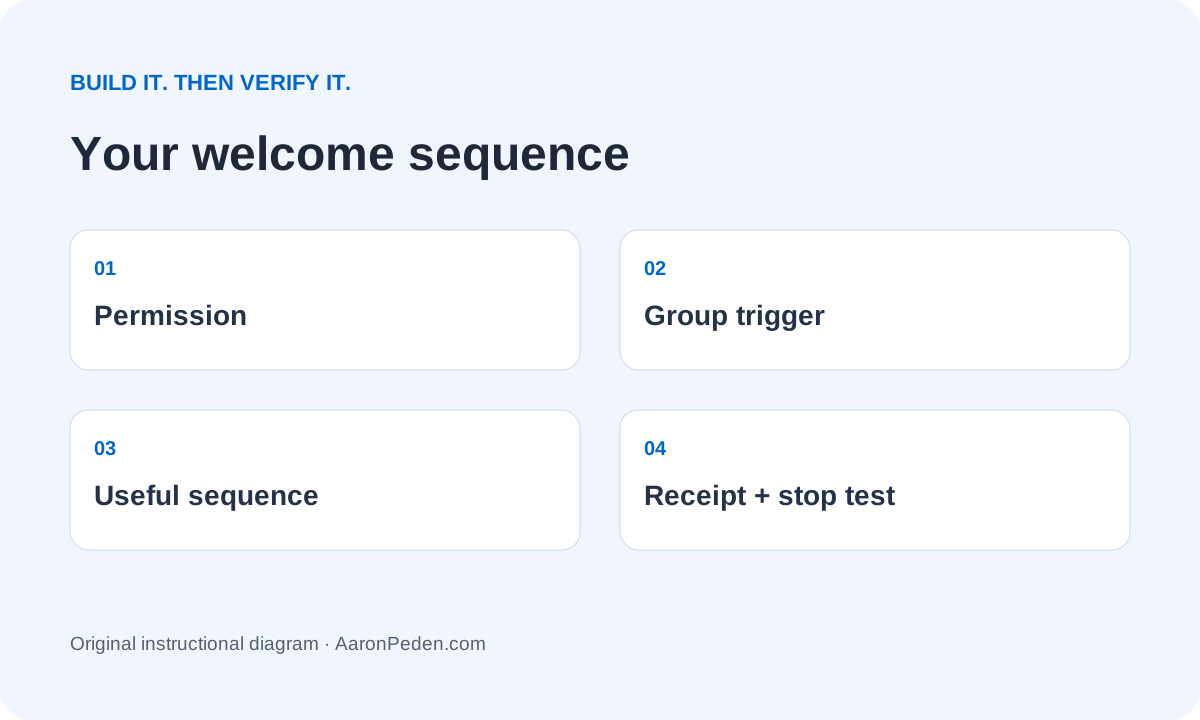
01Define who enters and what they agreed to receive
Use a narrow group such as trial-checklist-optin. The entry event is a person requesting Northstar’s fictional Trial Enquiry Handoff Checklist, not an imported spreadsheet of every address you have. Document the signup source, permission wording and resource version before configuring automation. Keep sales enquiries and marketing consent distinct.
Create or select the subscriber group through Sender’s subscriber management. Connect your signup form to that exact group and use an owned test address first. If a confirmation step is part of your consent design, only confirmed subscribers should enter the follow-up path; inspect the account’s actual double-opt-in setup rather than assuming a group name enforces consent.
Verify this stepA signed-out test signup lands in the intended group with a known permission source; unrelated contacts do not enter.
02Verify the sending identity before building volume
In Account settings → Domains, add a domain you control, complete ownership confirmation and follow the account’s current authentication instructions. The official Domains view separates Ownership confirmed, Authentication and Custom links. Inspect SPF, DKIM and DMARC status; they are not the same as clicking an email verification link.
Ask the existing domain administrator to merge necessary records safely. There must not be two competing SPF records, and a working DMARC enforcement policy should not be weakened to copy a tutorial example. Use the values issued for your account; do not copy placeholders from this article. Authentication improves verifiability but does not guarantee inbox delivery or warm a domain by itself.
Verify this stepThe intended From domain is verified and authentication is checked without disrupting the domain’s other legitimate senders.
03Create a workflow with one entry trigger
Open Automations → Create new workflow → Create from scratch. Choose Subscriber joins a group, name the workflow “Trial checklist – welcome v1” and click Create. In Trigger Setup, choose the precise group from Step 1 and save.
Leave Repeat workflow off for this one-time welcome sequence. Otherwise a person rejoining could receive the resource sequence again. Record the account timezone. Check that another workflow is not watching the same group for the same purpose. Different labels such as “added to a group” may appear in older documentation; match the semantics and current trigger configuration, not a memorized screenshot.
Verify this stepThe trigger block shows the right group, re-entry setting and one visible intended path.
04Write the first email around immediate delivery
Below the trigger, select + → Email. Set an internal title, From name, sender address, subject and preview text. Choose Create email content, use a simple template or plain-text option, then Save & continue. For the example, use the subject “Your trial enquiry handoff checklist” and put the requested resource link near the beginning.
The message should say what the reader requested, how to use it and what will arrive next. Use one main action: “Open the checklist.” A short sentence about future follow-up is more useful than a large sales banner. Confirm the reply mailbox is monitored. Include the account’s required sender details and functioning unsubscribe control; do not remove compliance elements to make the design cleaner.
Verify this stepThe preview names the actual resource, opens the correct file and makes the next expected email clear.
05Add two delayed emails that help the reader act
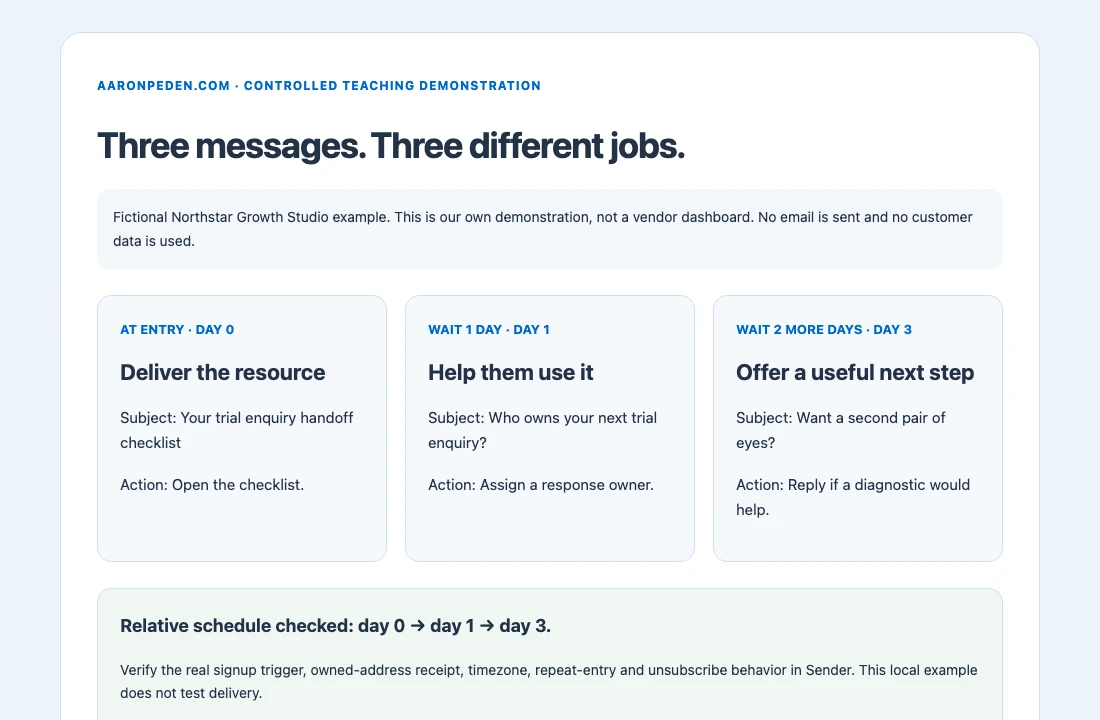
Add a Delay step after delivery, then another Email. For this fictional teaching schedule, wait one day before an implementation nudge and a further two days before the optional next-step email. The delays are relative: that is day 1 and day 3 from entry, not two independent timestamps.
Email 2 asks the reader to assign a response owner and test one enquiry. Email 3 explains when a diagnostic might help and invites a reply without claiming a missing reply is an objection. Sender supports Conditions and Actions, but do not invent a “replied” or “became customer” signal. Add suppression only after a real supported field, event or integration proves that state. Keep people who should stop receiving marketing out of the path through verified account controls.
Verify this stepYour timeline has one immediate message, then a one-day delay and a two-day delay; each email has a distinct useful job.
06Test the real workflow with owned addresses
Before broad activation, use the platform’s current preview/test controls for each email and a real controlled group-entry test for the full automation. A preview test email does not exercise the signup trigger, delay or repeat behavior. If you temporarily shorten delays in a test copy, name it clearly and never attach the production group to that copy. Restore the real timing before production use.
Test a new eligible address, a repeat group entry and an unsubscribe before the next message. Verify the receiver’s mailbox, not just the workflow counter. If an unsubscribe still receives a later marketing email, pause the workflow and resolve the suppression issue. Open links on a phone; distinguish a security-scanner click from a person reading the resource. Never use a scraped audience to “see if the flow works.”
Verify this stepYour log contains group entry, observed receipt, intended timing and the actual unsubscribe/re-entry outcome.
07Activate deliberately and review useful outcomes
After the tests pass, activate the intended workflow using the current activation control. Record the version, group, sender, timezone and owner. Start with the small audience that actually requested it. If a migration brings existing subscribers, review whether adding them triggers the welcome path before importing anything.
Watch delivery failures, complaints, resource access and meaningful replies. Opens and link clicks are diagnostic signals, not customers; privacy features and scanners distort them. Review copy after changes to the resource, offer, sender identity or signup source. Bring the sequence and evidence into Module 07: email and text follow-up. This tutorial covers email only; it does not establish SMS consent.
Verify this stepThe activated version matches the tested timing and audience, and someone owns monitoring and pausing it.
FICTIONAL NORTHSTAR GROWTH STUDIO EXAMPLE
Inputs → build → output → interpretation
| When | Subject | Job and main action |
|---|---|---|
| Immediately | Your trial enquiry handoff checklist | Deliver the requested file. Open the checklist. |
| After 1 day | Who owns your next trial enquiry? | Assign one response owner and test a handoff. |
| After 2 more days | Want a second pair of eyes on the handoff? | Optional reply/diagnostic; no pressure or invented urgency. |
Input: one permission-based group and a verified sender. Method: group entry → resource email → one-day delay → implementation nudge → two-day delay → optional next step. Output: a testable workflow and three distinct messages. Interpretation: the local timeline demonstration verifies the relative schedule and copy structure only; it does not prove Sender delivered a message or the audience converted.
When the build does not work
| Symptom | Likely cause | What to check next |
|---|---|---|
| The existing contact receives nothing | The trigger may require a new group-entry event | Test a fresh permitted entry; do not assume an existing group member automatically enters. |
| Welcome emails repeat | Repeat workflow or another automation is active | Inspect re-entry and overlapping group triggers. |
| Timing is unexpected | Relative delays or timezone were misunderstood | Write the entry timestamp, account timezone and each delay; inspect the actual execution. |
| Emails continue after unsubscribe | Suppression or another workflow is misconfigured | Pause marketing, inspect subscriber state and verify the receiver-side result before resuming. |
Keep your build and evidence together
Download the implementation template. Replace the fictional inputs with your own supported decisions. Keep your test results beside the build so someone else can reproduce the checks.
Download the welcome sequence and QA log ↓Write your implementation brief
Browser-only. No saving, sending or analytics collection of these inputs. Use fictional or non-sensitive planning information.
Done means you can demonstrate these checks
These checkboxes are temporary. Download your evidence before leaving; nothing typed into the workbench is sent to the server.
Implementation questions
Can I just import everyone into the group?
No. Establish permission and understand whether imports trigger automation. Do not use an import as a substitute for a known entry and consent rule.
Should I buy Sender if I already use Systeme.io?
Only if you have a specific unmet email requirement. A single working platform is usually simpler than overlapping welcome flows.
Is an open rate proof of success?
No. Use delivery issues and engagement as clues, then evaluate the requested resource use, useful replies and verified downstream actions.
OPTIONAL SOFTWARE · ONLY IF THE FIT IS RIGHT
Use the tool to complete the task.
Sender is a sensible option when your existing website needs a focused email platform with a visual welcome workflow and you can maintain a permission-based subscriber list.
Keep the simpler alternative if your current setup already passes the checks. Do not migrate a working system merely to follow this tutorial.
Affiliate link: I may earn a commission on an eligible purchase. Current plans and limitations are set by the provider; no discount or performance result is promised.
Set up this welcome sequence with Sender ↗Sources and review scope
Instructions checked against official documentation on November 1, 2026. Interface labels and account entitlements may change. Official pages below include provider-interface screenshots; use them if the control has moved. A linked official screenshot is not evidence that our teaching example ran in a paid account.
Review again when the interface, plan entitlement, consent settings or integration changes. Re-run the ordinary and failure checks after any change.
Bring the output back into your Blueprint.
Software setup is one implementation detail. Continue the course with your actual deliverable, remaining uncertainty and test evidence.
See the complete build order · Compare tools by the job they solve